Graph View
Graph view turns blocks into nodes and their tag and mention relations into connecting lines. Use it to see clusters, central blocks, and paths that are difficult to notice in a list.
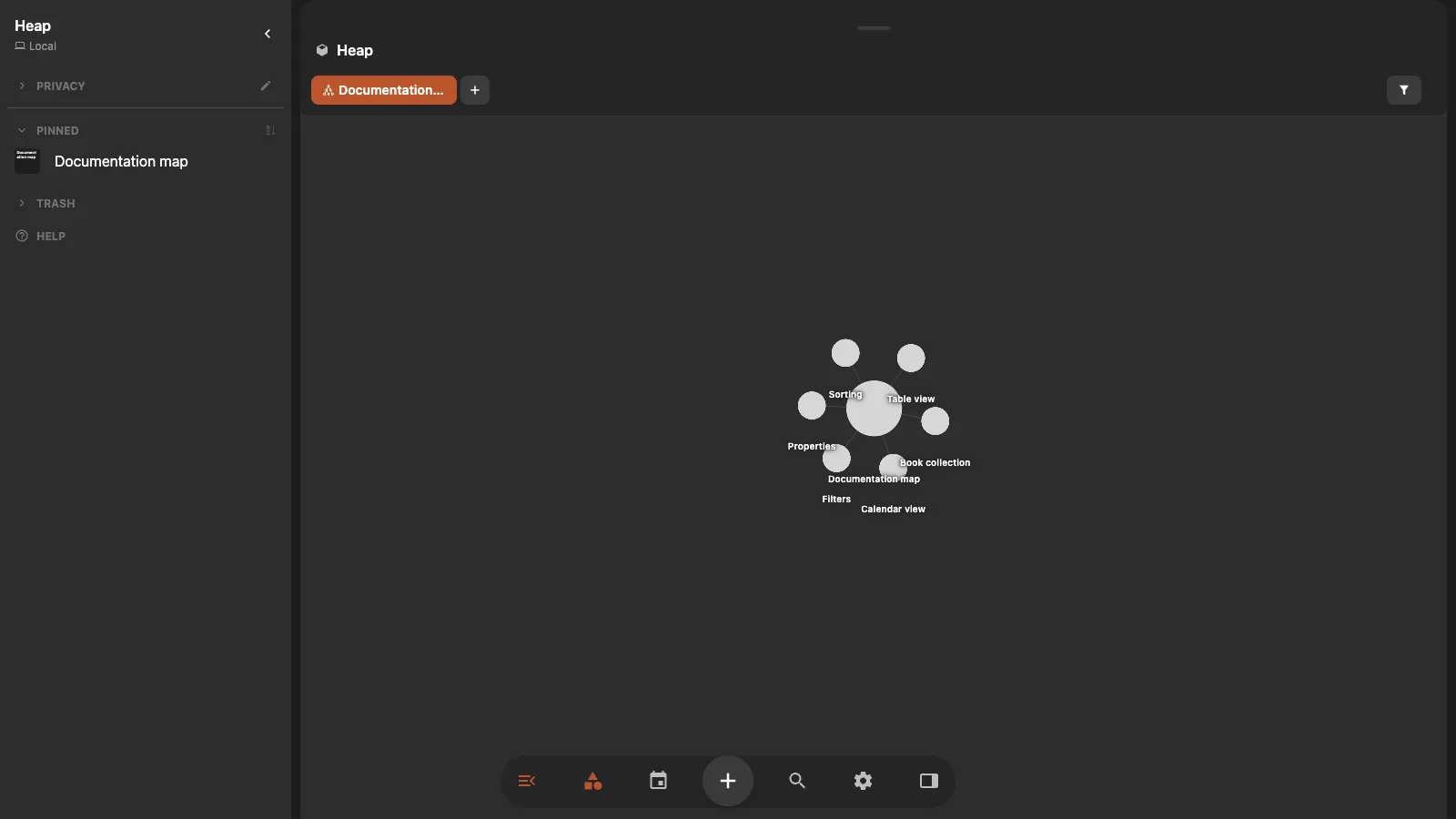
Create a Graph view
- Open the block whose connected collection you want to explore.
- Select New View in the view switcher.
- Select the new view again to open its settings.
- Under App type, choose Graph.
The graph shows No connections to display when the matching blocks have no tag or mention relations yet.
Explore the graph
- Drag the background to pan.
- Scroll or pinch to zoom.
- Drag a node to separate a crowded cluster.
- Point at a node to preview its title, thumbnail, or file name.
- Select a node to open that block.
Blocks with more connections appear larger. Block and tag colors carry into the graph, and a tag color can help identify its connected children.
Filter the graph
Filters decide which blocks and connections enter the graph. Use them to focus on one project, exclude archived material, or show only blocks with a reusable property.
To match blocks that have a property set, add the property block as a filter, open the filter chip, and change Links to Properties.
Graph also follows the heap's global filter. A globally hidden block does not appear as a node.
See Filters and Properties.
Tune the layout
Open Graph settings to change:
- Physics Runtime: Settle lets the layout stop after it stabilizes. Always On keeps adapting.
- Show Labels: shows or hides node titles.
- Link Distance: changes the space between connected nodes.
- Node Limit: caps how many matching blocks are loaded.
Advanced physics settings control spring length, spring strength, drag, gravity, and central pull. Use Reset when an experiment makes the layout less useful.
A lower node limit and hidden labels make a dense graph easier to inspect. Add filters before raising the limit when you want a focused result.