List View
List view shows one compact row per block. It keeps the title and optional icon or thumbnail visible without the extra columns of Table or the controls of Tasks.
Use it for reading lists, people, links, folders, or any collection where the name is the main thing you need.
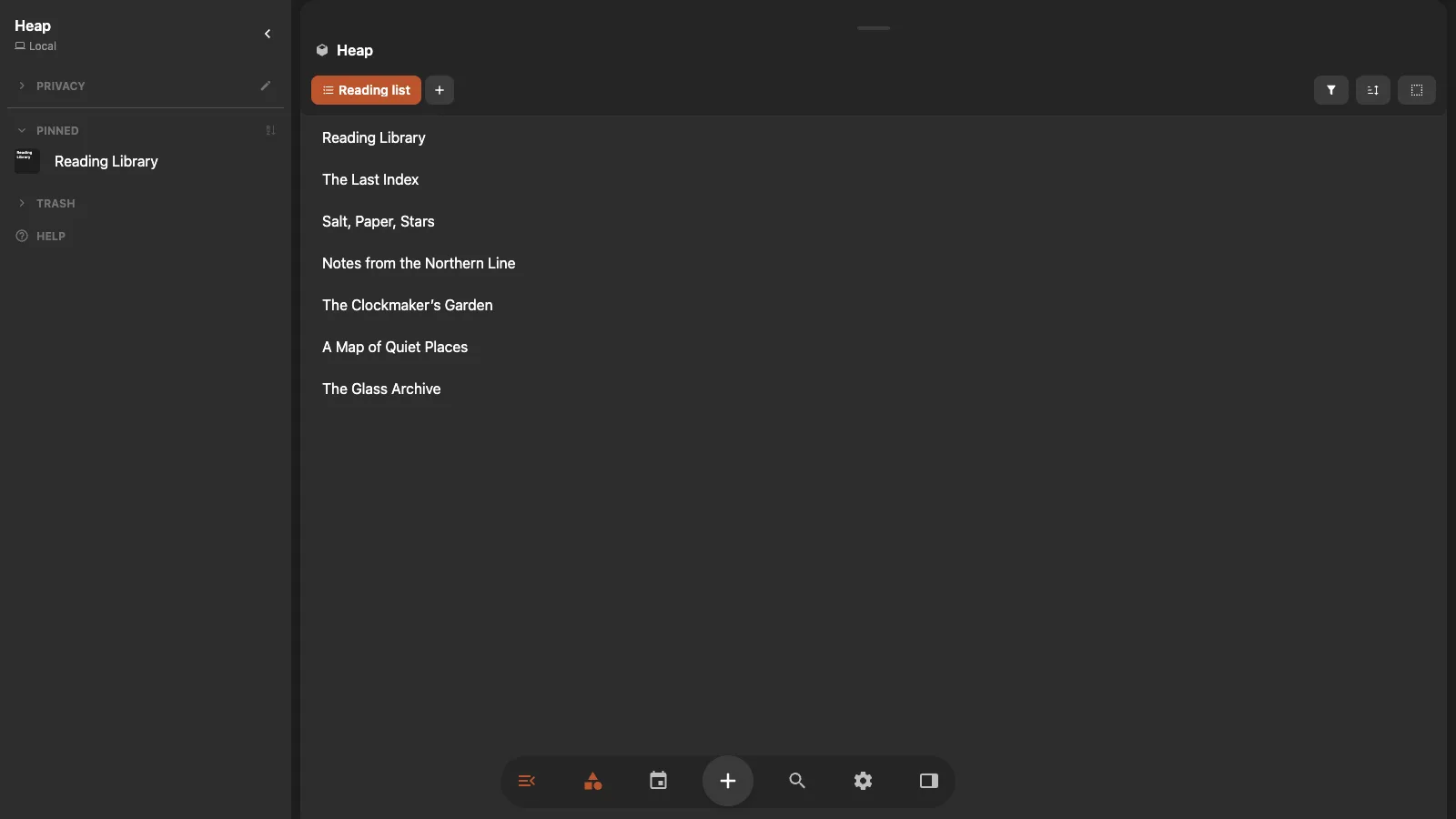
Create a List view
- Open the block that contains the collection, such as the
Booktag. - Select New View in the view switcher.
- Select the new view again to open its settings.
- Under App type, choose List.
Work with rows
- Select a title to edit it in place.
- Select the rest of a row to open the block.
- Use selection mode to select several rows and apply the same action.
List does not show task checkboxes, importance stars, dates, or an Add task field. Choose Tasks when those controls are part of the workflow.
Filter and sort the list
Open Filters to decide which blocks appear. Open Sort to order the rows.
For a book collection, you might:
- Require the
Booktag. - Filter Rating to Greater than 3.
- Sort by Author or Finished on.
- Include every block with ISBN set by filtering the ISBN property block and changing its link type to Properties.
Reusable properties can control the result without becoming visible columns. Choose Table when you want to see and edit those values beside every row.
See Filters, Sorting, and Properties for the shared controls.