Tasks View
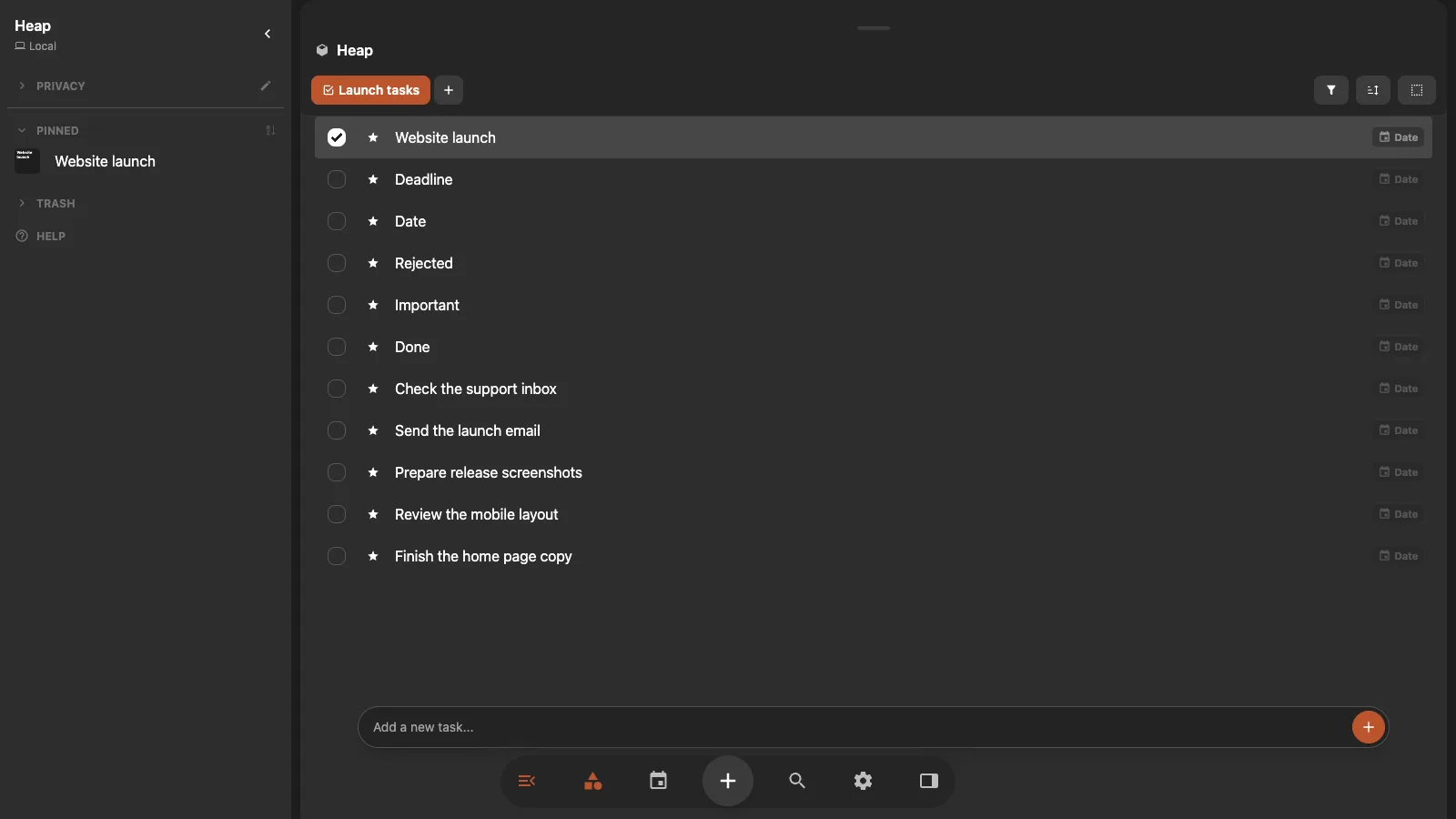
Tasks view turns every block in the collection into a task row. Each row has a completion checkbox, an importance star, an editable title, and a date control.
Use it for a project checklist, an inbox, or work that needs schedules and deadlines.
Create a Tasks view
- Open the block that contains the project or collection.
- Select New View in the view switcher.
- Select the new view again to open its settings.
- Under App type, choose Tasks.
- Complete the one-time task setup when Heaper asks for it.
The setup creates or connects the workspace's shared Done, Important, Rejected, Schedule, and Deadline fields. Because they are shared, a task keeps the same state in every Tasks view.
Add and update tasks
Enter a title in Add a new task at the bottom of the view. A new task inherits the current collection and the tags required by the view's filters, so it remains visible after you create it.
For an existing row:
- Select the checkbox to mark it completed.
- Select the star to mark it important.
- Select the title to edit it.
- Select the rest of the row to open the block.
- Select Date to add a schedule or deadline.
Choose List when you want the same compact rows without task controls.
Schedule and set a deadline
The date editor keeps two different dates:
- Schedule is when the task should show up.
- Deadline is when the task becomes overdue.
A task can use either date or both. Date fields can also include a time, reminder, range, or recurrence when those options are enabled.
Use Schedule for Work on the outline Monday morning. Use Deadline for Submit the outline by Friday. An overdue deadline is highlighted in the task row.
Use task filters
Tasks adds ready-made filters for common questions:
- All shows the full collection.
- Inbox shows tasks that still need planning.
- Today shows work scheduled for today.
- Scheduled shows tasks with a schedule.
- Overdue shows unfinished tasks past their deadline.
- Done Review shows completed work for review.
Status filters can show only completed or important tasks, or hide either state. Only and Hide options for the same state are mutually exclusive.
The normal view filters still apply. Use them to require project tags, exclude archived work, or filter reusable property values. See Filters.
Sort tasks
Open Sort to order tasks by general block fields or reusable properties. Tasks also adds Completed and Important sort choices.
Examples:
- Put unfinished tasks first with Completed sorting.
- Put important work first with Important sorting.
- Sort by Deadline to handle the nearest due work first.
See Sorting for the shared sort controls.
Tags and task states
Done and Important are shared workspace tags. They represent an on state: the tag is present or it is not.
This follows the same rule as other one-way states. Use a tag when you only need to mark that something is on. Use a Checkbox property only when both Yes and No must be stored as meaningful data. See Properties.