Calendar View
Calendar view places blocks on dates from reusable Date properties. One calendar can show event dates, deadlines, Created dates, and Updated dates together.
Use it for meetings, publishing dates, project deadlines, or the Finished on field from the book example.
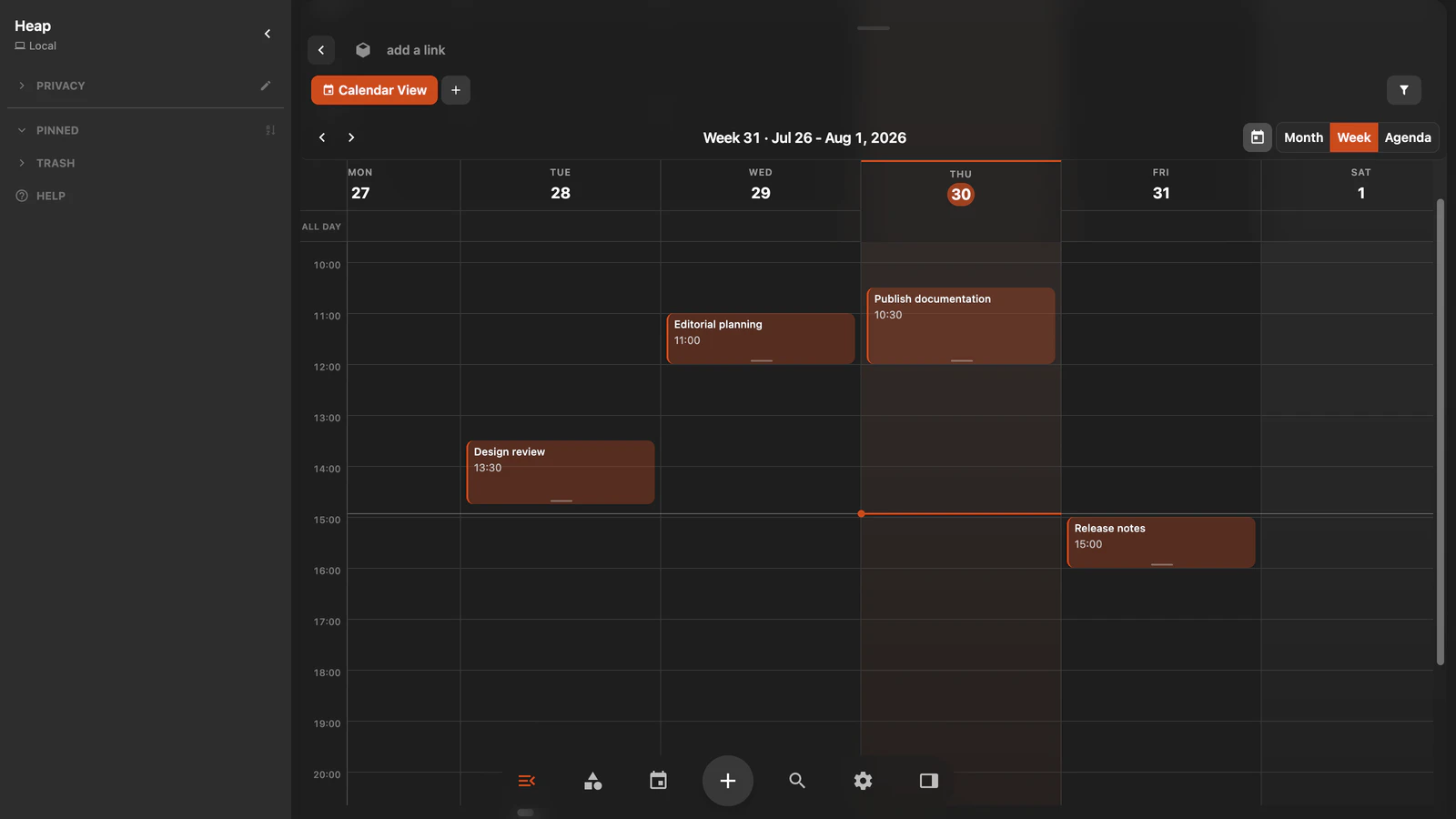
Create a Calendar view
- Open the block that contains the collection.
- Select New View in the view switcher.
- Select the new view again to open its settings.
- Under App type, choose Calendar.
- Complete the one-time calendar setup when Heaper asks for it.
Add date sources
Open the view settings and find Calendar date sources. Add one or more sources:
- Event property places blocks on a normal event date.
- Deadline property treats the date as a deadline.
- Created date uses the built-in block creation time.
- Updated date uses the built-in last-updated time.
Select an existing reusable Date property, such as Finished on, when the same date should work in Table, filters, sorting, and Calendar. If the collection has exactly one compatible Date property, Calendar can select it automatically.
An event source and a deadline source can point to different properties on the same block.
Switch calendar modes
Use the toolbar to move to the previous or next period, return to Today, and choose a mode:
- Month shows a full month and the number of items on each day.
- Week separates all-day items from timed events.
- Agenda shows dated items as a chronological list.
In settings, choose whether the week starts on Sunday or Monday. You can also set the initial week time and zoom from Compact to Large.
Create and edit events
In Week mode:
- Double-click a time slot to create an event.
- Drag across the time grid to select a longer period.
- Drag an event to reschedule it.
- Drag its resize handle to change its end time.
Select an event to edit its title, date, and time or open its block. You can also turn the block into a task.
Recurring events can be edited for this occurrence, this and following occurrences, or the complete series. Individual occurrences can be skipped or detached from the series.
Open daily notes
Select a day number in Month mode to open that day's note. Heaper creates the daily note when it does not exist yet.
Daily notes are regular blocks. They can contain rich text, tags, mentions, files, and properties. See Daily Notes.
Filter and sort calendar items
The view's normal filters decide which blocks Calendar can show. Date sources decide where those blocks appear.
To show every block with a date property set:
- Add the date property block to Required, Additive, or Excluded.
- Select its filter chip and change Links to Properties.
- Turn off Tags and Mentions when you only want property matches.
To filter by the date value, use Add property filter and choose an operator such as Before, After, Between, or Is not empty.
Sorting affects ordered presentations such as Agenda. See Filters, Sorting, and Properties.