Properties
Properties add structured information to any block. A book can have an author, page count, reading status, rating, and finish date. The same properties can be reused on notes, files, tasks, and other blocks throughout your heap.
This guide builds a fictional book called The Glass Archive. It uses one field from each property family so you can see the differences.
Add your first properties
1. Open Properties
Open a document and type --- in its first empty paragraph. Heaper removes the three characters and opens the Properties panel above the document.
You can also open the selection sidebar, expand Properties, and edit the current block or every selected block from there.
2. Create an ISBN property
- Select Add property.
- Enter
ISBN. - Open the type picker and choose Text, then Text.
- Select Create "ISBN" to create the reusable property.
- Enter
978-1-23456-789-7.
Reusable is the default. Use it when the same ISBN field belongs on every book. Select Create as inline only when the field should exist on this block alone.
3. Add the other core fields
Repeat the same flow for the remaining fields:
| Field | Exact picker choice | Example value | What it stores |
|---|---|---|---|
| ISBN | Text → Text | 978-1-23456-789-7 | Free text. It keeps hyphens, leading zeroes, and letters such as X. |
| Pages | Number → Number | 416 | A page count that sorts and filters as a number. |
| Finished on | Date → Date | 24 July 2026 | One calendar date. Leave it empty until the book is finished. |
| Favorite | Choice → Checkbox | Yes or No | Both the Yes and No states. If you only mark favorites, use a Favorite tag instead. |
| Author | Reference → Reference | Mara Voss | A link to the author's block. Allow multiple references for books with several authors. Person is for heap members. |

Use tags for one-way states
Use a tag when you only need to mark that something is on:
- Add a
Favoritetag to favorite books. - Add a
Needs reviewtag to items that need review. - No tag means the state is not on.
Use a Checkbox property only when both Yes and No are useful data. For example, use a Favorite book checkbox when you must filter explicitly for books marked No.
Property types
The type picker groups properties into five families:
| Family | Use it for | Common types |
|---|---|---|
| Text | Free text, names, codes, and identifiers | Text, Email, Phone, URL |
| Number | Values that sort, compare, or calculate numerically | Number, Money, Percent, Rating, measurements |
| Date | Calendar dates and time-based values | Date, optional time, date ranges, reminders, recurrence |
| Choice | Values selected from a fixed set | Checkbox, Choice, Status |
| Reference | Links to other blocks | Reference, Person, Files & media, Place |
The type controls the editor, formatting, sorting, filtering, and which apps can use the value. Calendar reads Date properties. Number properties sort 20 before 100.
Useful additions to the Book example
| Field | Exact picker choice | What it stores |
|---|---|---|
| Format | Choice → Choice | One option such as Hardcover, Paperback, Ebook, or Audiobook. |
| Reading status | Choice → Status | A workflow state such as Want to read, Reading, or Finished. |
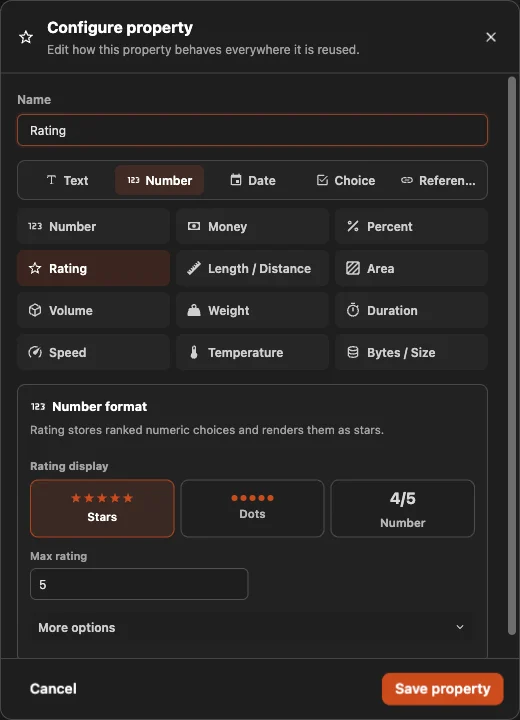
| Rating | Number → Rating | A number displayed as stars, dots, or a numeric score. |
| Reading progress | Number → Percent | A number displayed as a percentage. |
| Price paid | Number → Money | A number displayed with a currency. |
| Store link | Text → URL | A web address. |
| Cover | Reference → Files & media | A link to an image or file block. |
| Series | Reference → Reference | A link to the series block. |
Reusable and inline properties
Reusable properties
A reusable property is a normal block configured to act as a field. Reuse the same Author or Rating property everywhere that concept means the same thing.
- Search for it by name when adding a property to another block.
- Open the property block to document, tag, or inspect it like any other block.
- Rename or reconfigure it once to update how it appears everywhere.
- Use its identity in filters, views, and app mappings.
Choose reusable for fields that should be consistent across several blocks.
Inline properties
An inline property belongs only to the block where you create it. It is useful for a quick note or a field you are not ready to reuse.
To convert one later:
- Select the inline property name.
- Select Make reusable.
- Heaper creates a property block and moves the current value to it.
Changing an inline property's name or type affects only that field. Changing a reusable definition affects every block that uses it.
Configure a reusable property
Select a reusable property name and choose Open property block. Its Properties panel contains Property type. Open that row to configure the field.
Each type has its own settings:
- Date: time, date ranges, timezone, reminders, recurrence, and display format.
- Number: money, percentages, ratings, measurements, limits, precision, and progress displays.
- Choice: single or multiple selection, option colors, and option sorting.
- Reference: one linked block or several linked blocks.
- Checkbox: custom labels for the checked and unchecked states.
For Reading status, rename the default Status options to match your workflow, for example Want to read, Reading, and Finished.
Save the property to apply the definition everywhere it is reused.
Let a tag provide properties
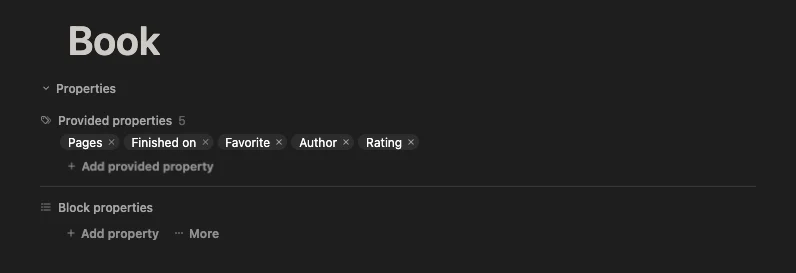
A tag can offer a consistent set of properties to every block tagged with it. This lets the Book tag describe what information books normally have.
Configure the Book tag
- Open the
Bookblock. - Open Properties.
- Select More, then Add provided property.
- Add Author, Pages, Favorite, Rating, and Finished on. Keep Favorite as a property only if the Book schema tracks both Yes and No.
When you tag another block with Book, its Properties panel shows the available fields under From Book. Select a field or Add all to attach the fields you want.
The tag provides the property definitions, not their values. You still enter the author, favorite state, rating, and finish date for each book.
Use properties in views
The same property can power several views without duplicating data:
- Add Pages, Rating, and Author as Table columns for comparison and inline editing.
- Use Finished on as a Calendar date source.
- Filter a Board view by Reading status. Board lanes themselves use tags.
- Filter or sort a view by any reusable property.

The table starts with the default Title column, adds the built-in Created and Tags columns, then adds Author, Pages, Finished on, and ISBN as reusable property columns. See Table View for the complete setup, editing, filtering, and sorting workflow.
When a view asks which property to use, select the existing compatible property. For example, set Calendar's date source to Finished on. See Calendar View.
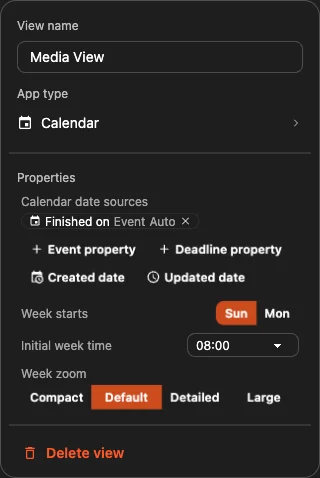
Changing a view mapping changes only how that view reads or writes data. It does not rename properties, copy values, or modify other views.
Filter by whether a property is set
This uses the same Required, Additive, and Excluded filters as tags:
- Open the view and select Filters.
- Add the property block under Required, Additive, or Excluded.
- Select the new filter chip to open its Links settings.
- Set the link type to Properties. Turn off Tags and Mentions if you only want property matches.
The view now matches blocks that have that property set. Required means every result must have it, Additive includes matching blocks, and Excluded removes them.
Filter by a property value
- Open Filters and find Properties.
- Select Add property filter.
- Select Choose property, then choose the reusable property.
- Choose an operator such as Is not empty, Equals, Greater than, or Between.
- Enter a value when the operator needs one.
Use Is not empty to show every block with a value for that property. The available operators and value editor match the property's type.
Sort by a property
- Open the view and select Sort.
- Under Properties, select Search property.
- Choose the reusable property.
- Use the arrow beside it to switch between ascending and descending order.
Blocks without a value for the selected property appear last.
Rename, clear, or remove a property
Select the property name to open its menu:
- Rename changes the inline name or the reusable property block's shared name.
- Change type is available for inline properties.
- Open property block lets you reconfigure a reusable property.
- Remove removes the property and its value from the current block.
Clearing a value is different from removing its property. An empty Finished on field still tells Heaper that the book can have a finish date. Removing it removes that field from the block.
If two reusable properties have the same name but different identities, Heaper keeps them separate. Open their property blocks to decide which one you want to reuse.
Choosing the right type
First decide whether you need a property. Use a tag for a one-way state. Use Checkbox only when you need both Yes and No.
Then choose the value type:
- Text: free text, names, codes, and identifiers.
- Number: numeric values, units, money, percentages, and ratings.
- Date: dates, times, ranges, reminders, and Calendar values.
- Choice: one or more options from a fixed set.
- Reference: links to blocks, people, files, or places.