Board View
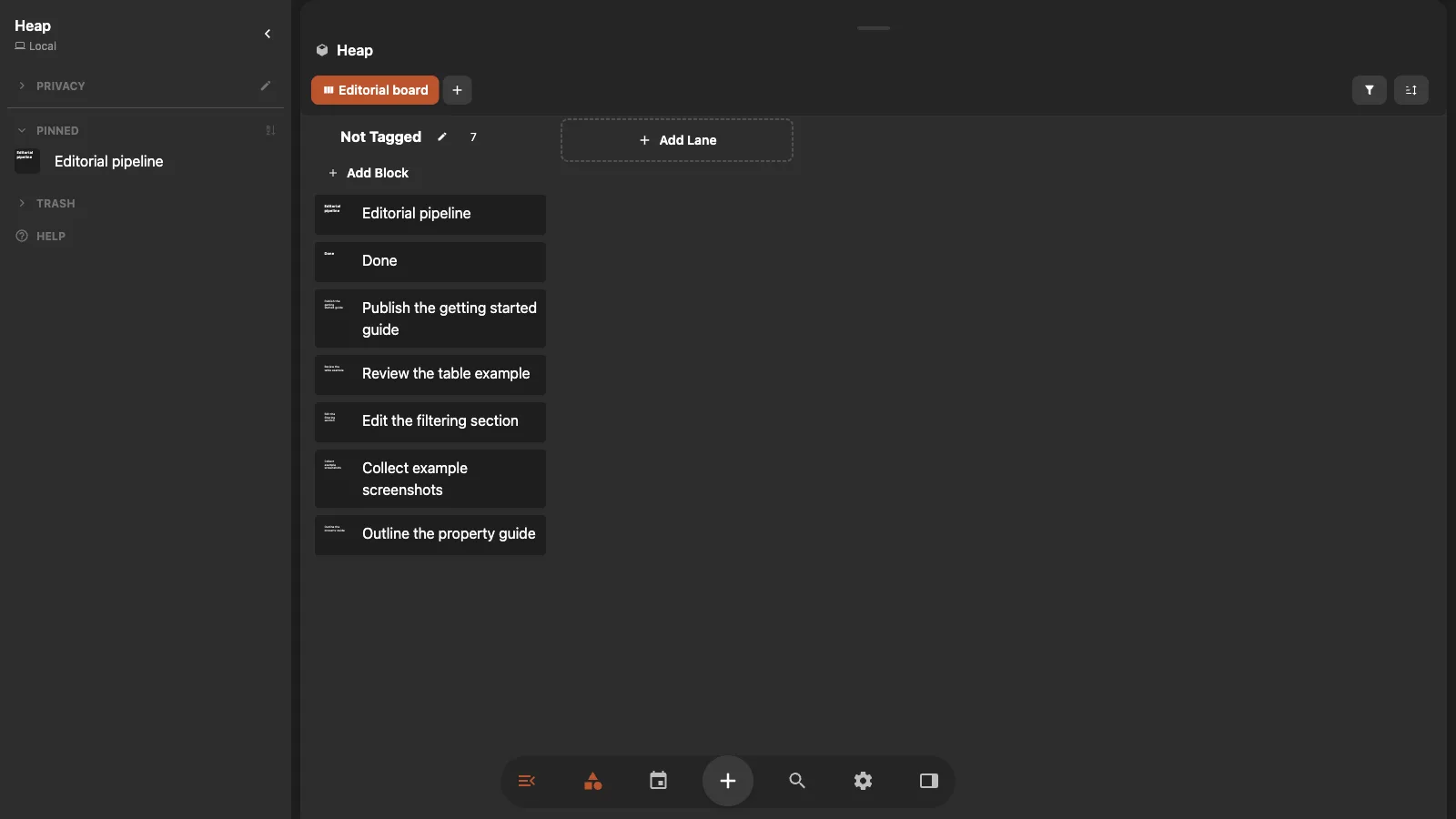
Board view arranges blocks as cards in lanes. Each lane is a tag. Moving a card to another lane removes the old lane tag and adds the new one.
Use Board for a publishing pipeline, project stages, or any workflow where a block moves between named states.
Create a Board view
- Open the block that contains the collection.
- Select New View in the view switcher.
- Select the new view again to open its settings.
- Under App type, choose Board.
- Complete the one-time Done setup when Heaper asks for it.
The default board contains Not Tagged, In Progress, and Done. Done is connected to the workspace's shared Done tag, so the same completed state also works in Tasks.
Add and arrange lanes
Select Add Lane, then search for a tag. The selected tag becomes a lane.
- Drag a lane header to reorder the lanes.
- Open a lane's tag block from its menu.
- Remove a lane from the board without deleting its tag or cards.
- Rename Not Tagged when another label, such as
Backlog, is clearer.
A card appears in Not Tagged when it has none of the board's lane tags.
Move and create cards
Drag a card:
- Up or down to change its manual order.
- Into another lane to change its lane tag.
- Into a group to change its group tag.
Create a block directly inside a lane or group when you already know where it belongs. Heaper adds the tags required for that position.
Manual card order is saved for this view. When the view has an active Sort rule, that rule controls the order instead.
Add groups
Groups split every lane into smaller vertical sections. In Board settings, add tags under Groups. A publishing board might use people or content types as groups while its lanes remain Draft, Editing, and Published.
- Drag groups in settings to reorder them.
- Rename Ungrouped to describe cards without a group tag.
- Remove a group without deleting its tag or cards.
Moving a card between groups changes its group tag in the same way that moving between lanes changes its lane tag.
Filter and sort the board
Open Filters to decide which blocks are allowed onto the board. Open Sort to order cards by title, date, a reusable property, or another available field.
To show every block that has a reusable property set:
- Add the property block to Required, Additive, or Excluded.
- Select the filter chip and change Links to Properties.
- Turn off Tags and Mentions when you only want property matches.
See Filters, Sorting, and Properties for the shared controls.
Tags or properties?
Board lanes use tags. This makes each lane a real block that you can open, describe, nest, and reuse elsewhere.
Use a Choice or Status property when you need a fixed field displayed in Table or used by property filters. Use Board when changing a tag is the workflow itself.